Tuesday, December 22, 2015

Windows 10, Onedrive and odrive

As I use about ten different Widows platforms, PC’s, laptop, tablets and phones it is a must to have my data files in a reliable cloud server. Onedrive has proven to be reliable and stable, until I updated one of my laptops to windows 10. After the update I notices that all data had to be stored both locally on the computer and offline on the cloud server. This creates an unusual amount of net traffic, which actually bogs up any network connection. Many paces have still rather limited bandwidth, 10/1, or even less. And upload is usually very slow, much slower than download. Now my Windows 8 machines just use offline storage, whit occasional local backups, and this worked nicely.

After starting to work with Onedrive for Business, things became worse and I had to shut down the cloud service on my Windows 10 laptop. This has made my life easier, but it is not very sophisticated to use Onedrive files through a Web Application.

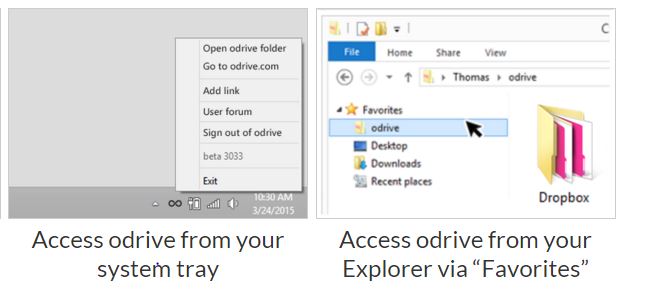
There are several work around, but not very elegant. One third party cloud client is orive, which actually integrates many cloud services, like Onedrive, Dropbox, Google and a lot of others. Just download the application from odrive for your platform (Mac or Windows) and start enjoying the lost functionality of Smart Files.  Odrive creates a placeholder on your system tray, and work just as a directory. But of course remember, these files are on the Onedrive cloud only, you can access them only when having network access.


Presently odrive has no way for integrating Onedrive for Business, so we are still waiting for that.


Friday, September 18, 2015

Windows 10, first experience

Last night I upgraded my ACER touchscreen laptop from Windows 8.1 to 10. It took several hours, to download, install, verify and modify the new system, but everything went smoothly and without problems. All installed programs and applications worked properly in the new environment, the only exception being F-Secure antivirus, which seemed to be deleted by the new installation.

I already knew, that Windows 10 would be something incorporating the best features of 7 and 8, but actually my very first impression was slightly disappointed. In my view Microsoft took a step back, from the dynamic looks of Windows 8 to a more conservative approach, perhaps this is what the public wanted.

The good thing is that one can now decide on a Tablet view (for a tablet computer) or a Windows 7 look for a normal mouse operated laptop or desktop PC. It is supposed to work with hybrids (tablet with removable keyboard, in such a way that it automatically switches from Desktop view to Tablet view. Also the bottom Taskbar can be hidden using from the Tablet view in Settings. This is often necessary as in tablet mode the Taskbar hides the lower part of the application windows, which can cause problems when, for example, it covers the NEXT button in an application.

In my opinion, the Tablet view in Windows 10 is less elegant than in windows 8.1, but this can still be improved. The old Windows 7 Desktop look is boring and not very impressive, but at least everything works. For smaller tablets running Windows 10, the zoom function (magnifier) is still the same as with windows 7 and 8, cumbersome and missing the elegance of the iPad´s three finger gesture, or the Lumia phone´stwo finger gesture, amazing that this has not been resolved.

Windows 10 managed to resolve the problem of the two operating environments, touchscreen and mouse driven, into one operating system, which is a good thing. However, as touchscreen displays proliferate the need for a next generation operating system will come soon, as this is by far a  more interactive and intuitive environment to work in. It is so much easier to use your fingers than to find a mouse under a pile of papers!


Friday, August 7, 2015

Lost your USB-stick?


Now I finally have my Microsoft Windows devices tuned and synchronized. I have of course a desk top computer in my office, a laptop at home, a Lenovo tablet (8”) and a Fujitsu hybrid tablet (10”) all running Windows 7 or 8.1. Two Windows Phones, a Lumia 920 and a Lumia 1020 finalize my working environment.

As a geographer I work often in the field and need georeferenced data, pictures I take must be georeferenced and they are automatically stored on the OneDrive cloud when I am in reach of a WIFI connection notes I store on OneNote and I can access this data on all devices, even on my iPad which I still use as also here I can access OneDrive. All my data is stored directly on OneDrive for Business or on my Personal OneDrive.

USB-sticks seem to be already old fashioned, but still I carry some with me, as in some parts of the world internet is still not reliable and access can be slow or impossible. And to be on the safe side, it can be very sensible to make some backups on DVD disks, because we cannot be sure that OneDrive will be always there, for example F-Secure’s secure encrypted cloud Younited was sold and discontinued, leaving its users in the cold.

For important data, I can only recommend to do regular DVD backups, as everything else, USB-sticks, hard drives, everything can be stolen, broken, burnt, destroyed or get lost. Working with a cloud server gives you instant backup, but for permanent storage still a physical copy is the best you can get.


My next project will be to see how well an Android device will fit into my “ecosystem”.

Monday, January 26, 2015

Geo Cam and Lumia 1020


Geo Cam and Lumia 1020

We all know that you can geotag pictures storing location (and other information) of the image using your smart phones. If you want an image that displays this information visible in the picture you should use Geo CAM, (Geographic Camera) 

This is an easy to use and handy application for the more geographically minded.
I also got a Lumia 1020 now, the image quality is of course suburb, nothing new about that, but the GPS outperforms my old Lumia 920. The GPS gets ultra-fast fixes, and works even inside an airplane, if you are seated next to the window.  It also gives you the opportunity to save pictures in RAW format, which gives you all the possibilities of post-editing using for example Photoshop. 


Friday, March 28, 2014

GeoPhoto, another application to show the geographical places you visited


Geophoto is an App like Nokia Storyteller, but has less features, and is therefore much faster. Unlike Storyteller, GeoPhoto shows the actual images on the map, the icons can be round or square. By clicking the image you can get access to the information regarding the image, location, time, etc. You can also access the navigation software like Nokia Drive to navigate to the location. You can edit the location, share it with your friends and a lot more.


All in all, all very great application for free, and if you want an advertisement free version just pay a few Eurosa, it is worth it. 


Saturday, March 15, 2014

Nokia Storyteller


Nokia Storyteller is designed to show your mobile images according to time and place. It works only correctly if you have the location option of the camera application ON, recording the GPS coordinates of every picture taken. I use this feature always, because it is a great way to keep track of images later, for example in Picassa.  Storyteller gives also the possibility to add notes to the images for later use.

The iamges are organized by location, and on the map you will see circles whit a size depaneing upon the number of pictures taken in the area. Zooming breaks donw the circles into smaller ones, untill you will have only dots indicating the locations of separate images.

The only shortcomming at the moment is the fact that there are no “miniature” images showing on the map, only dots when zooming in. Clicking on the dot will oopen the image. I remember in Symbia we had this feature in the Nokia map software.


Wednesday, September 4, 2013

Amber and the end of an era


t was actually quite surprising to read that Microsoft bought the Nokia phones business, but these things happen and we can only speculate about the reasons. Perhaps this was the plan from the beginning, rebuild Nokia phones, and transfer it to Microsoft when the product is ready. Now it is ready, a complete line of Lumia devices, from low end to the high end 1020 super camera phone. Market share is increasing and profit is around the corner. This kind of radical moves have been seen before as Nokia dumped consumer electronics to concentrate only on mobile phones in the 1990j’s.

Now Windows Phone and Lumia is still great, that does not change, and only the future can tell whether Microsoft is able to use this new asset wisely , please consumers and make profit.

Now what about the Amber update, actually it did something great, it extended battery life nearly three times, at the moment I get nearly three full days from one charge, from the previous less than one day. It also put in some new features, Camera Pro, a clock you can use without opening your phone and other features. But I think most of the Amber update is not directly visible, but did a great deal to improve the phone.

The update itself takes a long time, several hours, not minutes, and just leave your phone untouched, I had mine plugged to the charger to be on the safe side and went for lunch. It looked dead for a long time, showing just the empty battery sign, but in the end it started an entirely new life. I am very pleased with Amber.


Photo with Lumia 920, end of summer 2013